



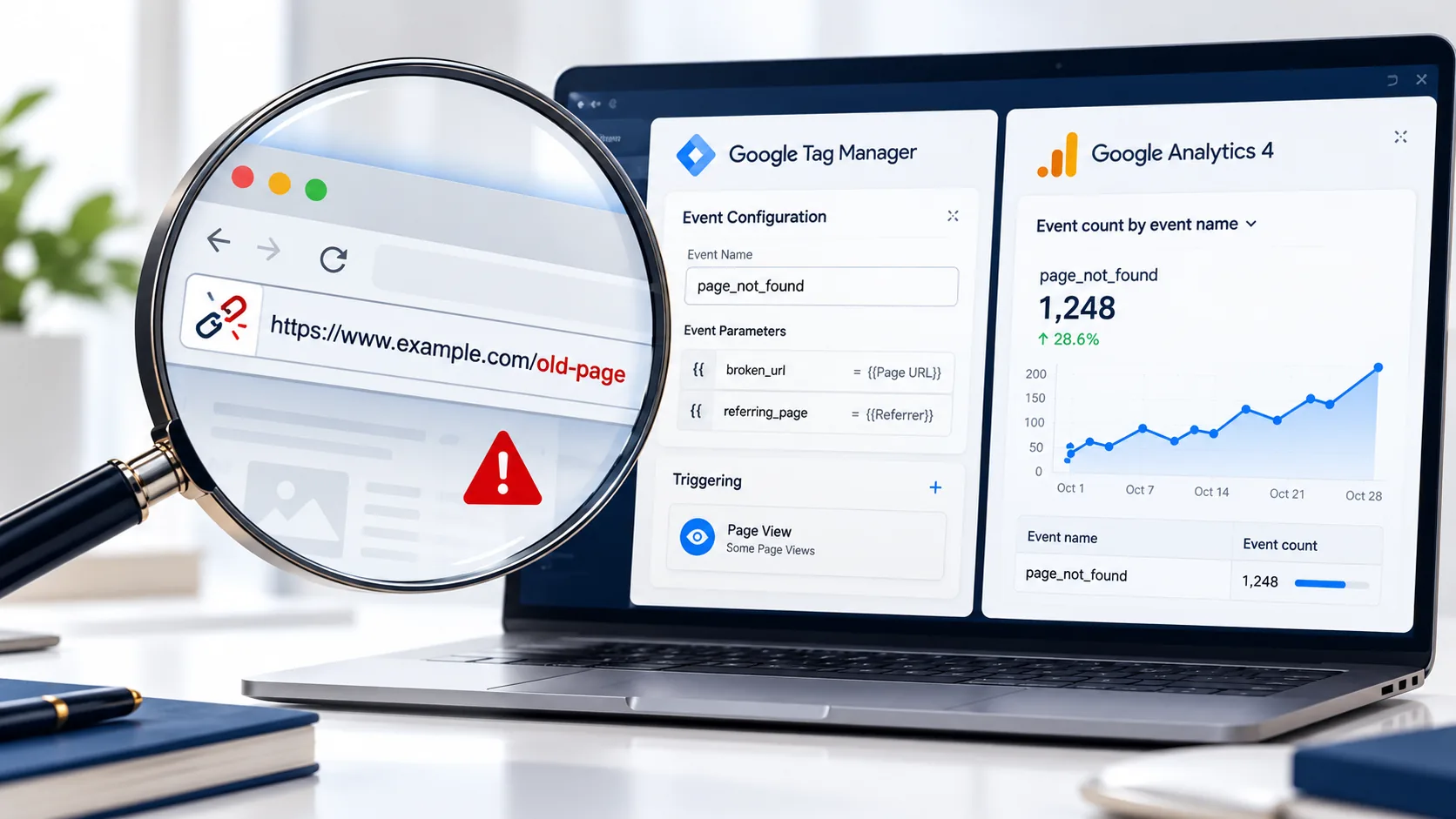
To track 404 errors in GA4 with Google Tag Manager, create a trigger that fires when your error page loads (usually by matching the page title, such as “Page Not Found”). Attach it to a GA4 event tag that sends the broken URL and the referring page. Test it in Preview mode, publish, then review the event in GA4.
Nobody plans to land on a broken page, but visitors do, every day. Maybe an old service page was deleted, a URL changed, or a link in a newsletter had a typo. GA4 records that visit as a normal page view, with nothing to say it was a dead end. That’s the gap we’re closing.
Why is it worth tracking 404 errors?
Each 404 is a person who wanted something from your site and hit a wall. Many simply leave. Google Search Console shows broken URLs that Google has crawled, but not what real visitors ran into or which link they clicked to get there. Tracking 404s in GA4 shows you the pages that actually frustrate people, so you can fix those first.
First, how does your 404 page identify itself?
Open a URL that doesn’t exist, like yoursite.com/this-page-does-not-exist, and look at the browser tab. Most sites show a title like “Page Not Found” or “404 – Oops.” That wording is what Tag Manager will listen for.
Two quick checks before you build anything:
- If your 404 page has no recognisable title or heading, ask your developer to add one.
- Ask them to confirm the page returns a genuine 404 status. Tag Manager can’t see server status codes, so a page that looks like an error but loads as “200 OK” (a soft 404) is a separate problem to fix.
The 5-step setup
Step 1: Create the trigger
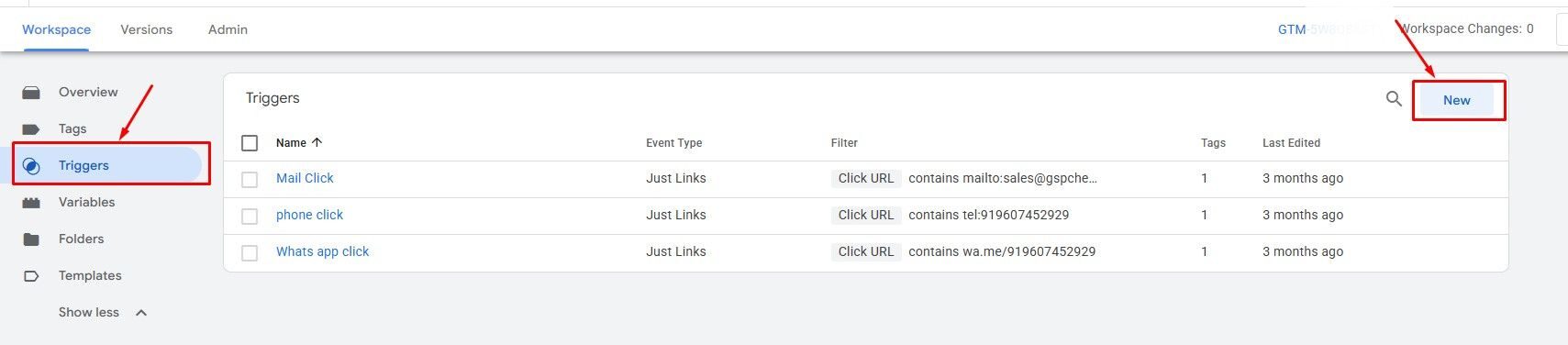
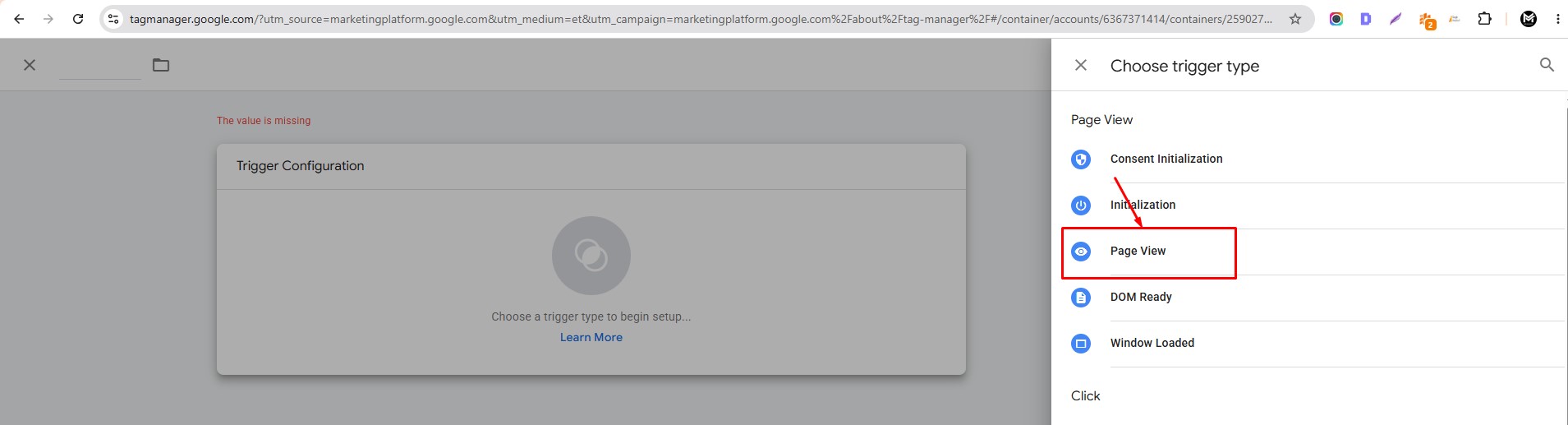
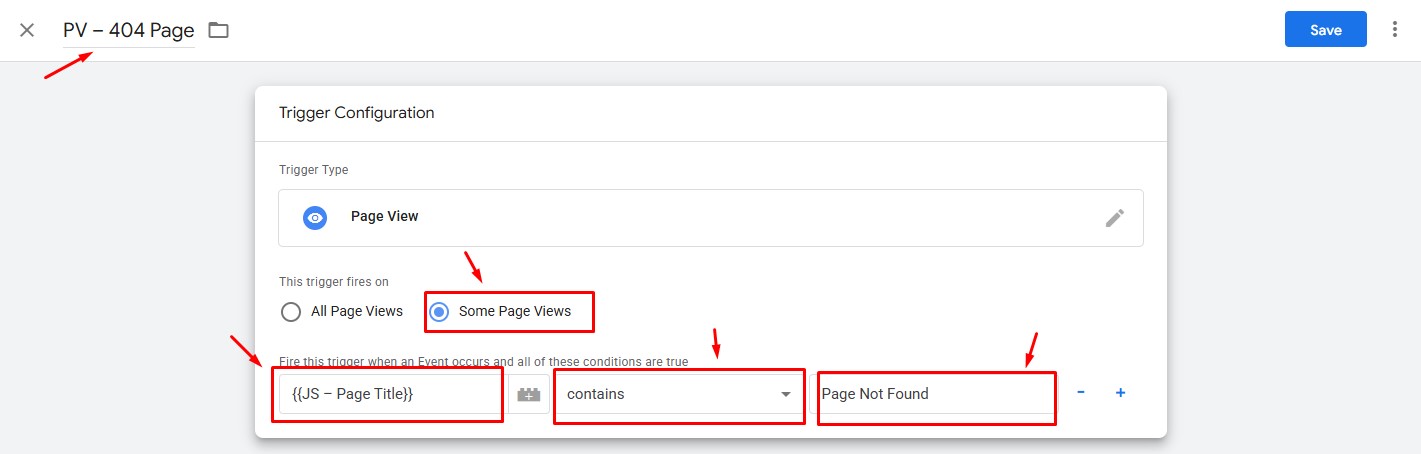
In GTM, go to Triggers → New → Page View, choose “Some Page Views,” and set Page Title contains “Page Not Found” (use your own wording). Name it “PV – 404 Page.” Be specific here. If you’ve published an article called “How to Fix 404 Errors,” a trigger that only looks for “404” will fire on that too.
Step 2: Create the GA4 event tag


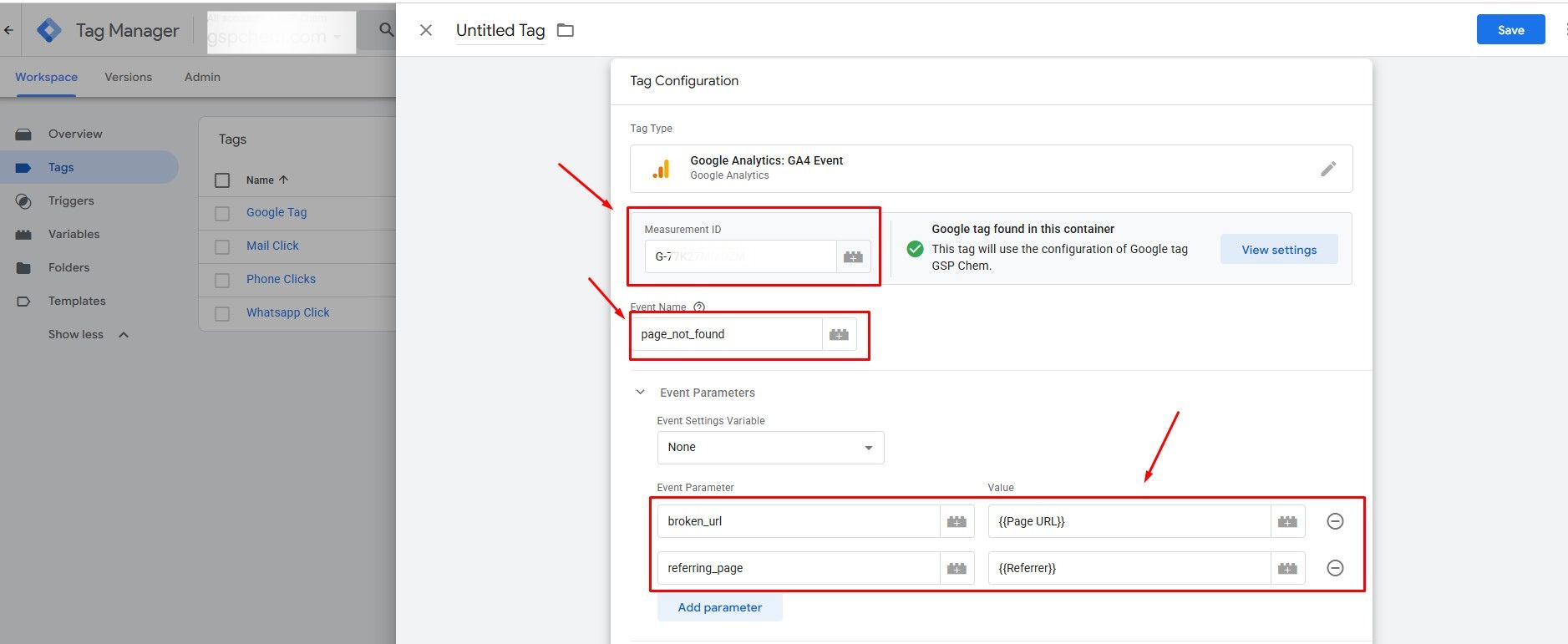
Go to Tags → New → Google Analytics: GA4 Event and select your Google tag or Measurement ID. Name the event page_not_found, then add two event parameters:
- broken_url = {{Page URL}}
- referring_page = {{Referrer}}
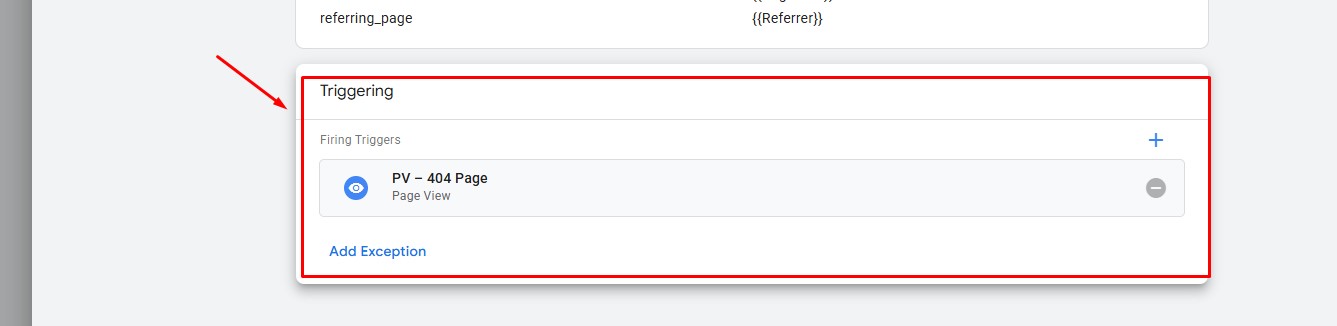
Attach the trigger from Step 1.
Step 3: Test it
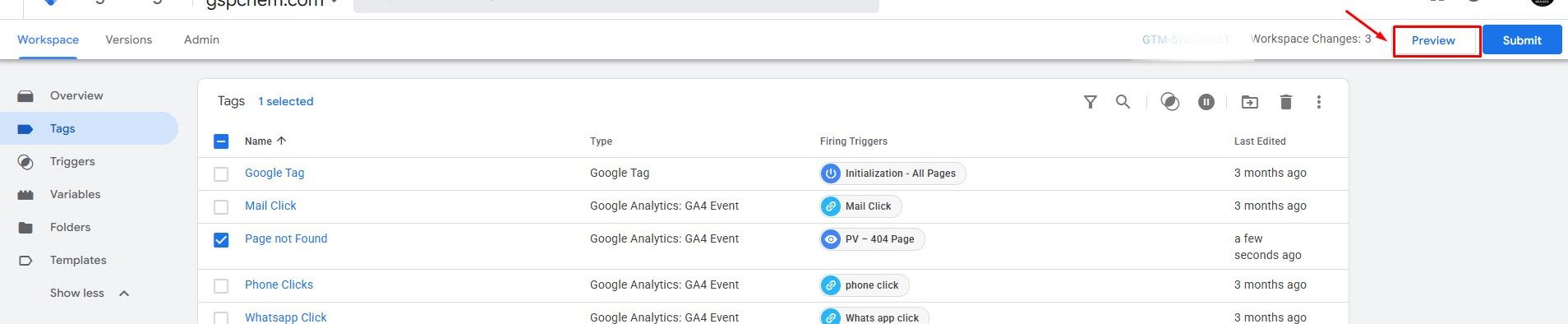
Click Preview, enter a broken URL, and confirm the tag fires. Then open GA4 → Admin → DebugView to watch the event arrive.

Step 4: Register your parameters
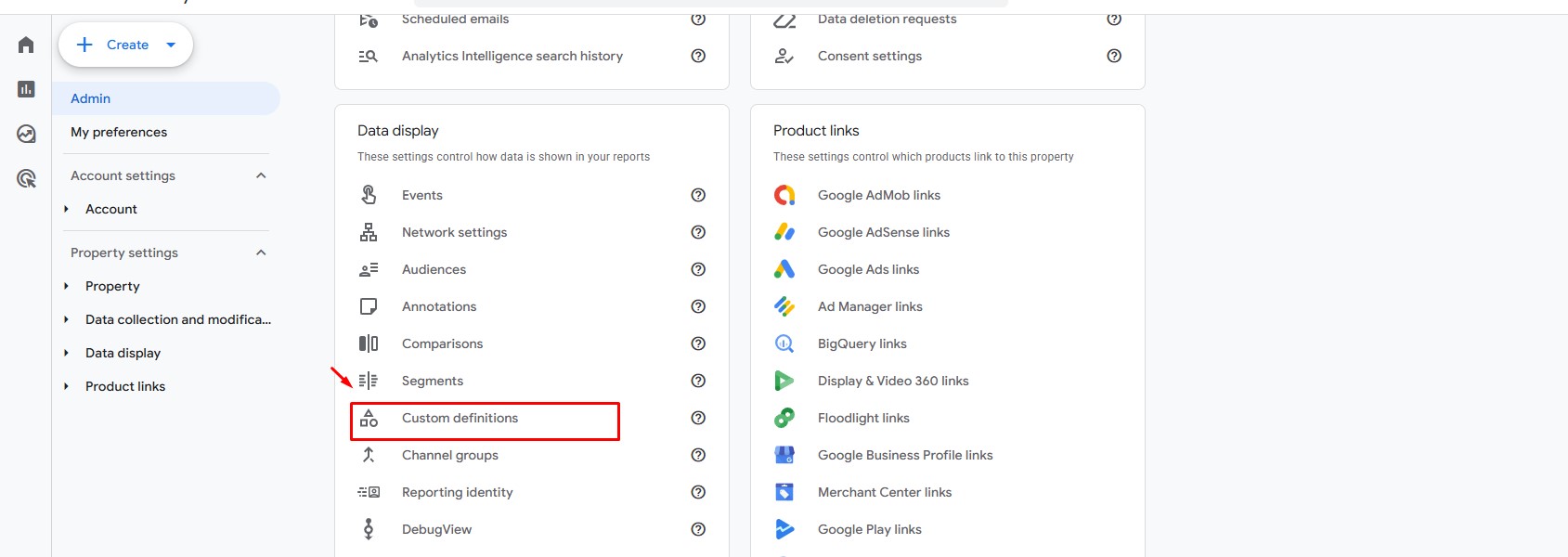

In GA4, go to Admin → Data display → Custom definitions → Create custom dimension. Add one for each parameter, with the scope set to Event. This only applies to data collected from that point on, and it can take up to 24 hours to appear in reports.
Step 5: Publish
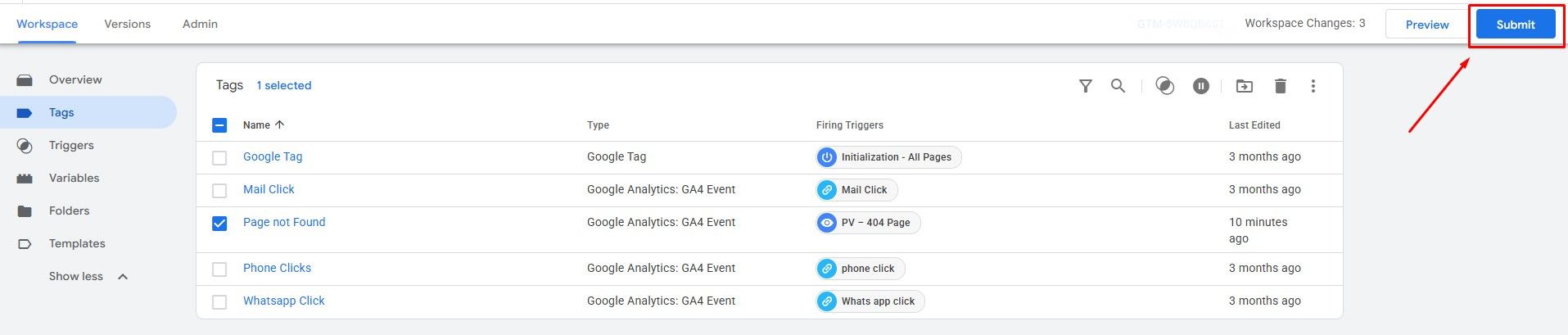
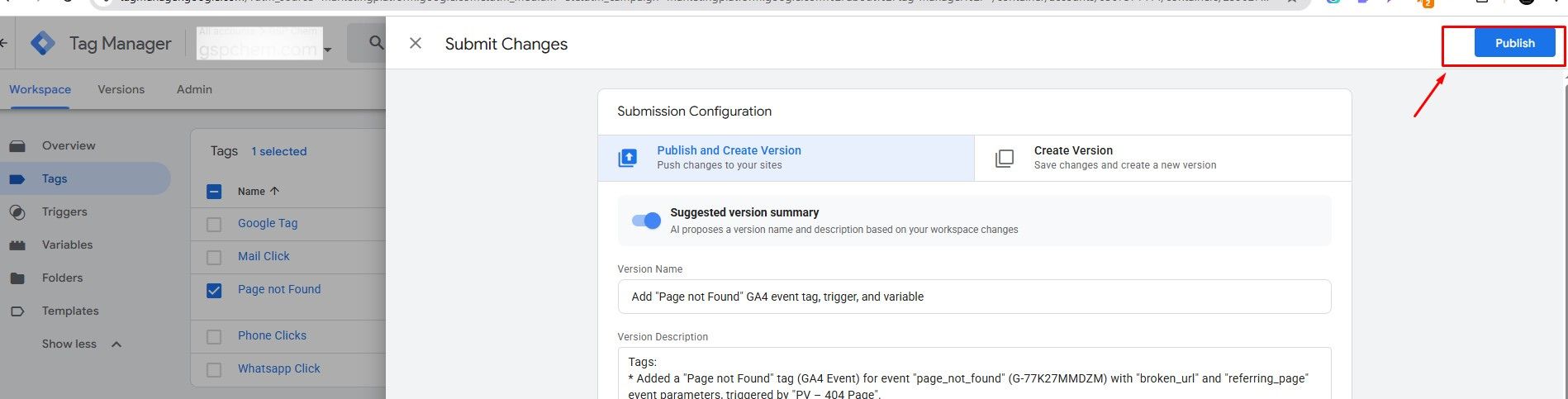
Once everything checks out, publish your GTM container.
Where do you see the data?
Go to Explore → Free form. Add broken_url and referring_page as rows, Event count as the value, and filter by event name = page_not_found. For a quick look with no extra setup, you can also spot the event count under Reports → Engagement → Events.
The three-question triage: which 404s deserve your time?
Here’s where most guides stop, but a list of broken URLs isn’t useful until you decide what to do with it. You don’t need to fix everything. For each URL, ask three questions:
- Where are people coming from?
If the referrer is a page on your own site, fix that link. If it’s another website, redirect the broken URL so that link isn’t wasted. - How often does it happen?
Start with the top ten by event count. A URL hit 200 times matters far more than one hit twice. - Is there a close replacement?
If so, set up a 301 redirect to it. If not, leave the 404 in place, but make that page helpful with a search bar and links to your key pages.
That turns a messy list into a short to-do list you can actually finish. Check it monthly, and weekly after a redesign or migration, when broken URLs spike.
Broken pages are a symptom. Let’s find the cause.
404s are just one sign of a site that’s leaking visitors. At MIAAKA Tech, an SEO agency in Mumbai, we start with a diagnostic that looks at search visibility, funnel leakage, and how your tracking is set up, so you know what’s really costing you leads. If you’d like a second pair of eyes on your site’s health, we’d be glad to help.